Front Panel
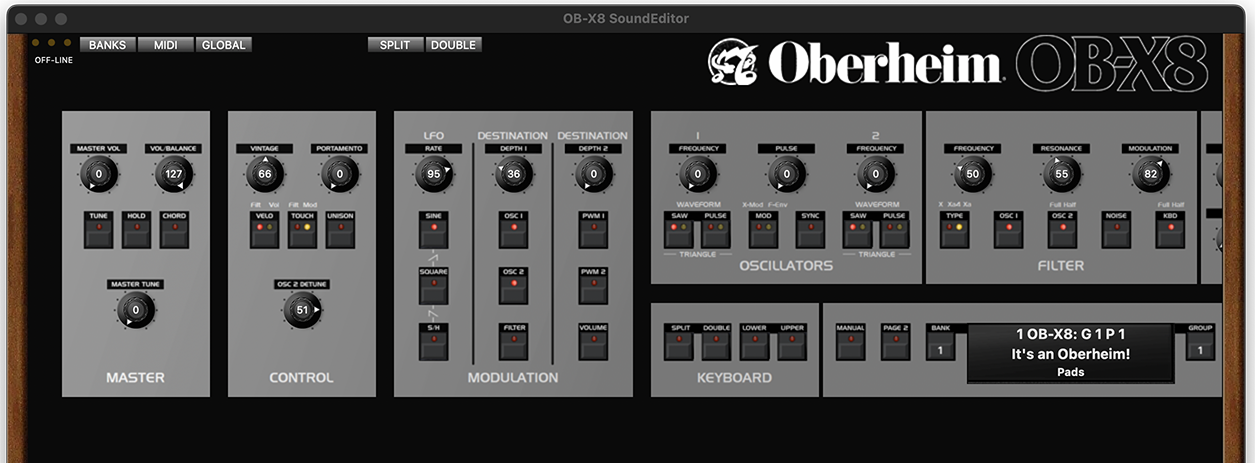
Let’s review the various buttons and sliders on the front panel.
The upper left buttons allows you to switch between Voice and Banks view
The Midi and Global buttons open windows previously discussed in the manual.
The Split and Double buttons will be discussed below.
The slider at the bottom of the window may be clicked or dragged to show various areas of the editing panel.
The Horizontal/Vertical button determines the orientation of the panel to accommodate available monitor space.
The percentage button likewise adjusts the magnification to accommodate available monitor space.
Stack Modes
The OB-
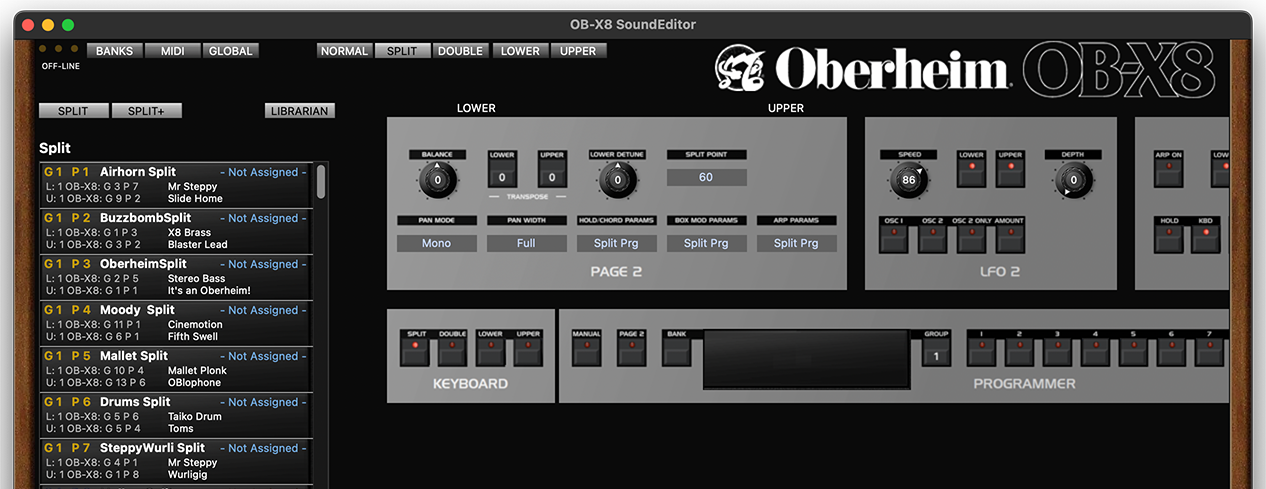
When either Split or Double modes are selected, the first window that appears shows the parameters common to both halves of the stack.
For this example we will show Split mode. Double mode works the same way.
On the top of the panel there is now shown Normal, Split and Double buttons to navigate between modes and Lower and Upper voices to focus the individual program that makes up the Split or Double.
The items available in the program File, Edit and Midi menus will reflect the selected mode.
When you open a Split or Double, the coinciding Bank is opened on the left side to allow access to currently available programs.
Split and Split+ (Double and Double+)
The normal and “+” Stack Programs differ in one key manner:
Normal Split or Double programs select the two individual programs that make up the stack by program location. These selections are references only, meaning that if you have a Stack program that uses the first and second programs from any bank, should you ever edit or replace either or both of those single programs, the Stack program will not recall correctly because the source programs have been modified.
The “+” option for Splits and Doubles actually save all the data for each of the two programs as part of the Stack program. When a “+” Stack Program is saved, changing the individual normal programs that make up that stack program will not affect the saved stack.
This is by far the safer way to save Stacks.
Be sure to consider and understand these two options before making changes to individual normal (single) programs.
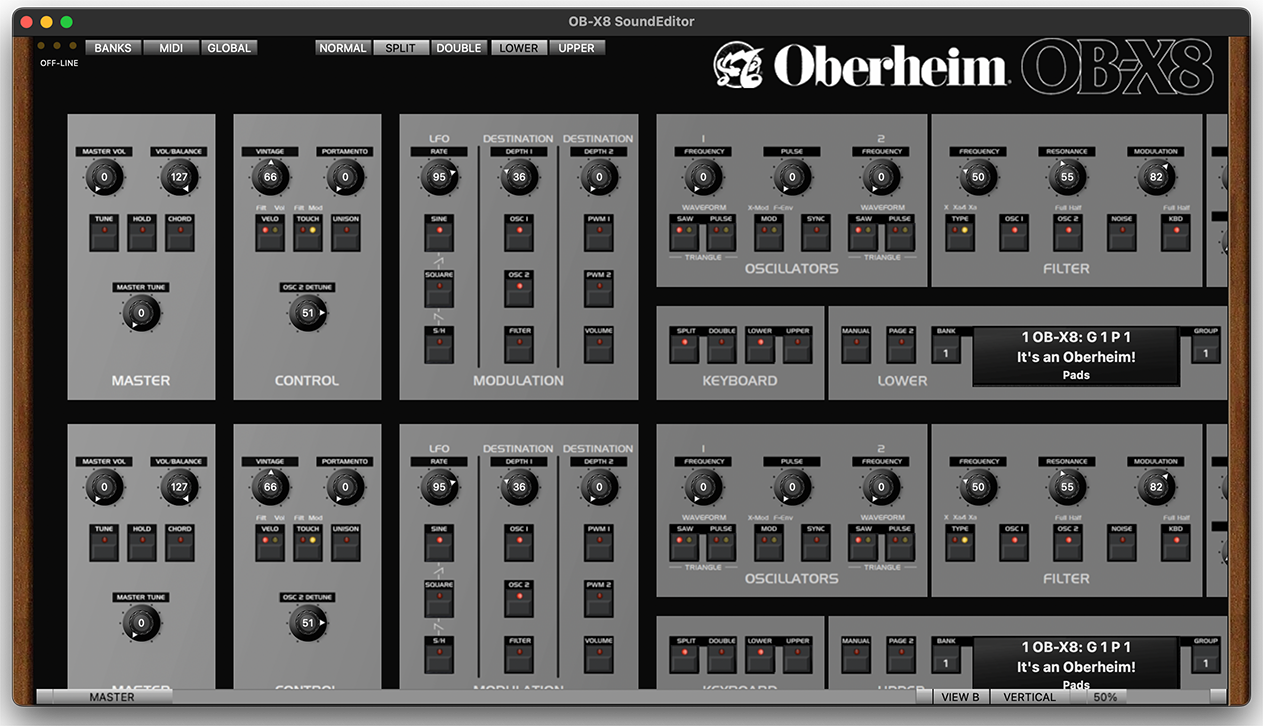
Clicking Upper or Lower will bring up the full front panel display. From here you can make edits to the individual programs as needed.
When this view is open, there are additional buttons to modify the panel layouts to best match your available monitor configuration. View reverses the order of upper and lower voices and Horizontal/Vertical changes the orientation of the two panels and the % slider will zoom in and out. An additional slider on the right side will allow you to scroll as needed to see the two panels.
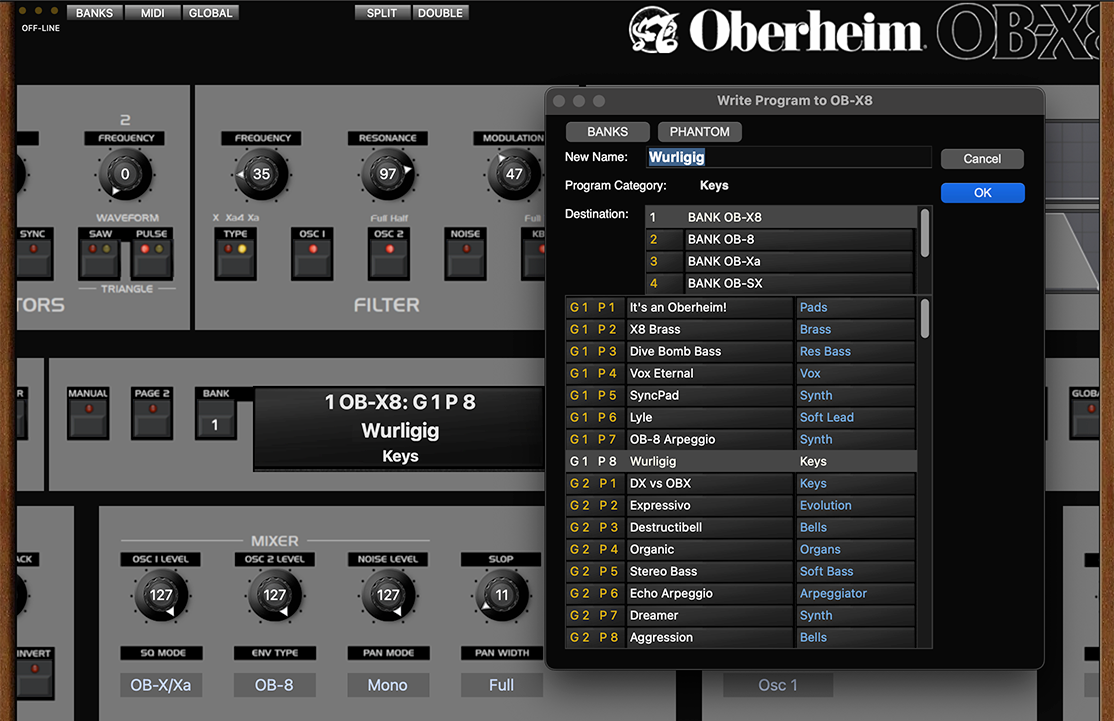
You will need to save any changes that are made to edited single programs using the
Write button on the front panel or programs, or the Save option in the File menu.
Please note -
This window will appear where you can determine where you would like to save the edited program.
Again, please remember, saving in this manner will possibly effect other Stack programs that use the original version of the modified program.